aicmd — Turn Prompts into Terminal Commands

I built a tool called `aicmd` to help you work faster in the terminal and use your mouse less. Here is the workflow it replaces: ### The Old Way You need a terminal command. 1. Open ChatGPT or Claude in your browser. 2. Ask something like: *"Generate a terminal command for macOS that finds all `.log` files older than 7 days and deletes them."* 3. Copy the command. 4. Go back to your terminal and paste it. ### With aicmd Stay in the terminal. Run: ```bash aicmd <what you want to do> ``` Then press Enter. ```bash aicmd spin down the app on 8080 ``` `aicmd` puts the generated command directly at your shell prompt, ready for you to review, edit, and run.  ## Install & Source Code You can install `aicmd` on macOS and Linux with a single command: ```bash curl -fsSL https://github.com/zazencodes/aicmd/raw/refs/heads/main/install.sh | sh ``` The installer puts the standalone binary in your path and sets up a starter `~/.config/aicmd.toml` configuration file. The project is 100% open source and I'm accepting PRs: > **Source Code** — [https://github.com/zazencodes/aicmd](https://github.com/zazencodes/aicmd) > > Please give the project a star on GitHub if you find it helpful. Your support > means that I get to keep creating free open-source projects like this! ## How It Works `aicmd` automatically detects your environment—your OS, CPU architecture, active shell, and current working directory—and injects that context into the model prompt. The prompt enforces a strict rule: return exactly one single-line shell command. No markdown fences, no explanatory text, and no leading `$` prompt. The generated command appears right on your command line via terminal injection. It is never executed automatically—you inspect it first, modify it if needed, and press Enter yourself. ## Three AI Backend Options `aicmd` routes your request to whichever AI backend you choose. There are three options: ### 1. Local LLM (Completely Free) `aicmd` currently supports **Ollama** and **llama.cpp**: ```bash # Using Ollama with a small local model aicmd -m ollama/gemma4:e2b/none find large files changed this week # Using llama.cpp aicmd -m llama/gemma-3-4b-it/none list directories using the most disk space ``` Local models work really well for generating terminal commands, and *can be* near-zero latency, if you use a small model and if it's "warmed up" (loaded in memory). For the first examples in the demo GIF above, I'm using `gemma4:e2b` with Ollama. As you can see, the results are accurate and nearly instantaneous. ### 2. CLI Agents (Uses Your Existing Subscriptions) If you already use coding agents, `aicmd` can piggyback on their existing authenticated CLI sessions: - **Codex** (`codex login`) - **Claude Code** (`claude auth login`) - **Antigravity** (`agy`) ```bash aicmd -m codex/gpt-5.6-terra/low list the 10 largest files in this repo aicmd -m claude/haiku/low show git branches sorted by last commit date ``` Because it uses your existing CLI login, usage is billed against your existing monthly plan limits rather than requiring separate API keys. The user prompt is piped via stdin, keeping it out of your system process table. ### 3. Direct API (Lowest Latency for Cloud Models) If you want cloud intelligence without the startup overhead of initializing a full agent process, you can call provider APIs directly. Pass your standard environment variables (`OPENAI_API_KEY`, `GEMINI_API_KEY`, or `ANTHROPIC_API_KEY`): ```bash export OPENAI_API_KEY="your-key" aicmd -m openai-api/gpt-5.6-luna/none summarize disk usage as one command export GEMINI_API_KEY="your-key" aicmd -m gemini-api/gemini-3.7-flash/low find all open TCP sockets ``` Calling the APIs directly incurs token costs, but provides significantly faster response times than invoking full CLI agent runtimes. ## Model Specs & Effort Levels Models are configured with a simple `provider/model/effort` format: ```text provider/model/effort ``` For most everyday terminal commands, I recommend setting effort to `"low"` or `"none"` for maximum speed: ```bash # Zero reasoning overhead for quick one-liners aicmd -m openai-api/gpt-5.6-luna/none list docker containers sorted by memory # Low effort when a bit of reasoning helps aicmd -m codex/gpt-5.6-terra/low extract all IPv4 addresses from app.log ``` ## Web Search Support For complicated requests where accuracy matters or you are working with newly released CLI tools, `aicmd` can use web search too. The CLI agent backends (Codex, Claude, agy) support web search out of the box, and support is also integrated for direct APIs. ## Practical CLI Features `aicmd` includes the features you'd expect from a polished command-line tool: - **Persistent Configuration**: Set your preferred default backend once: ```bash aicmd config set model ollama/gemma4:e2b/none aicmd config set model codex/gpt-5.6-terra/low ``` - **Clipboard Integration**: Automatically copy every generated command to your system clipboard (`pbcopy`, `wl-copy`, `xclip`, `xsel`): ```bash aicmd config set clipboard on ``` - **Inspect Reasoning**: Pass `-x` or `--verbose` to inspect the effective configuration, the injected prompt, and streamed reasoning/thinking tokens. - **Pipe & Redirection Support**: When stdout is redirected to a pipe or file, `aicmd` prints the raw command instead of injecting into the terminal, making it script-friendly: ```bash aicmd print current git branch > branch_cmd.sh ``` ## Try It Out `aicmd` was created to save you time. Install it, configure your favorite backend AI, and let me know how you like it. You can get in touch directly: Alexander Galea<br> alex@zazencodes.com If you find it useful then share it with a friend! **GitHub Repository**: [https://github.com/zazencodes/aicmd](https://github.com/zazencodes/aicmd)
I built a tool called aicmd to help you work faster in the terminal and use your mouse less.
Here is the workflow it replaces:
The Old Way
You need a terminal command.
- Open ChatGPT or Claude in your browser.
- Ask something like: “Generate a terminal command for macOS that finds all
.logfiles older than 7 days and deletes them.” - Copy the command.
- Go back to your terminal and paste it.
With aicmd
Stay in the terminal.
Run:
aicmd <what you want to do>
Then press Enter.
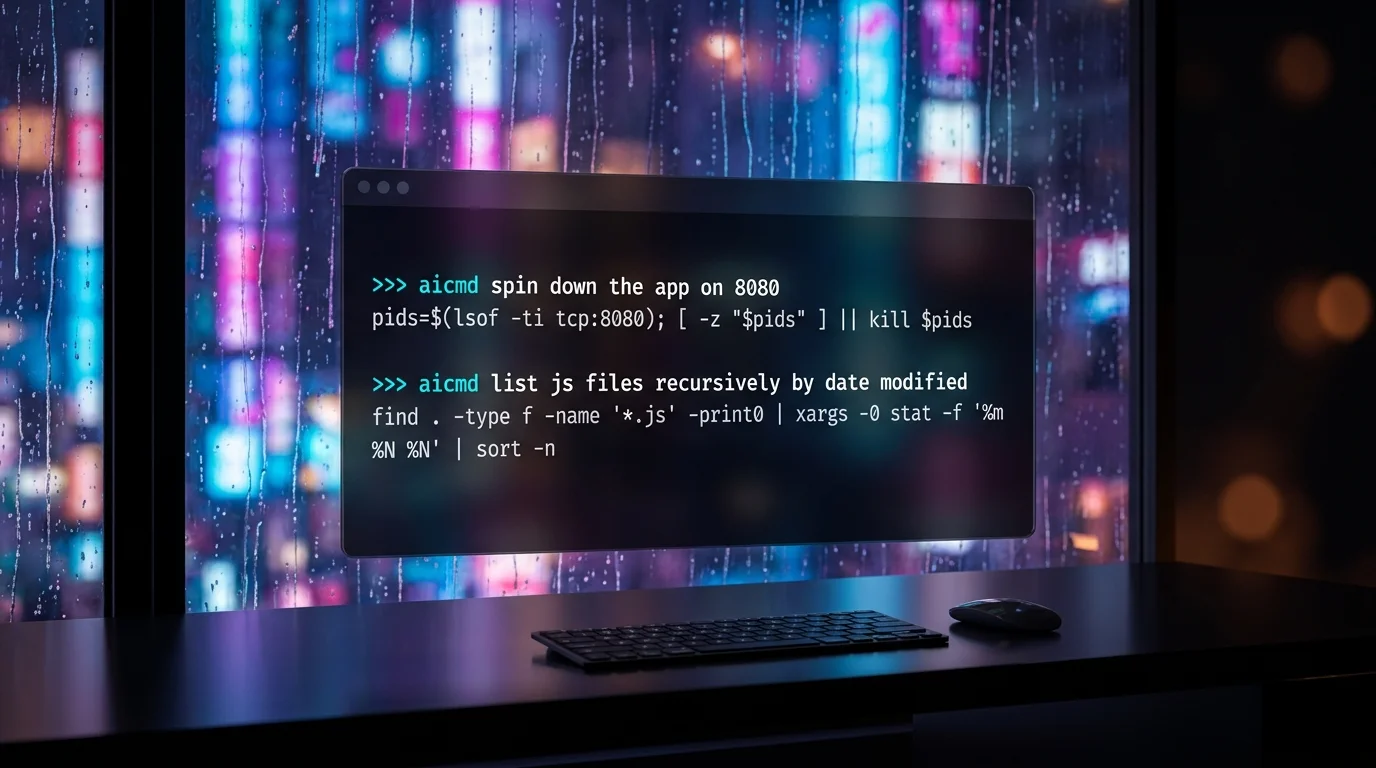
aicmd spin down the app on 8080
aicmd puts the generated command directly at your shell prompt, ready for you to review, edit, and run.

Install & Source Code
You can install aicmd on macOS and Linux with a single command:
curl -fsSL https://github.com/zazencodes/aicmd/raw/refs/heads/main/install.sh | sh
The installer puts the standalone binary in your path and sets up a starter ~/.config/aicmd.toml configuration file.
The project is 100% open source and I’m accepting PRs:
Source Code — https://github.com/zazencodes/aicmd
Please give the project a star on GitHub if you find it helpful. Your support
means that I get to keep creating free open-source projects like this!
How It Works
aicmd automatically detects your environment—your OS, CPU architecture, active shell, and current working directory—and injects that context into the model prompt.
The prompt enforces a strict rule: return exactly one single-line shell command. No markdown fences, no explanatory text, and no leading $ prompt.
The generated command appears right on your command line via terminal injection. It is never executed automatically—you inspect it first, modify it if needed, and press Enter yourself.
Three AI Backend Options
aicmd routes your request to whichever AI backend you choose. There are three options:
1. Local LLM (Completely Free)
aicmd currently supports Ollama and llama.cpp:
# Using Ollama with a small local model
aicmd -m ollama/gemma4:e2b/none find large files changed this week

# Using llama.cpp
aicmd -m llama/gemma-3-4b-it/none list directories using the most disk space
Local models work really well for generating terminal commands, and can be near-zero latency, if you use a small model and if it’s “warmed up” (loaded in memory).
For the first examples in the demo GIF above, I’m using gemma4:e2b with Ollama. As you can see, the results are accurate and nearly instantaneous.
2. CLI Agents (Uses Your Existing Subscriptions)
If you already use coding agents, aicmd can piggyback on their existing authenticated CLI sessions:
- Codex (
codex login) - Claude Code (
claude auth login) - Antigravity (
agy)
aicmd -m codex/gpt-5.6-terra/low list the 10 largest files in this repo
aicmd -m claude/haiku/low show git branches sorted by last commit date
Because it uses your existing CLI login, usage is billed against your existing monthly plan limits rather than requiring separate API keys. The user prompt is piped via stdin, keeping it out of your system process table.
3. Direct API (Lowest Latency for Cloud Models)
If you want cloud intelligence without the startup overhead of initializing a full agent process, you can call provider APIs directly.
Pass your standard environment variables (OPENAI_API_KEY, GEMINI_API_KEY, or ANTHROPIC_API_KEY):
export OPENAI_API_KEY="your-key"
aicmd -m openai-api/gpt-5.6-luna/none summarize disk usage as one command

export GEMINI_API_KEY="your-key"
aicmd -m gemini-api/gemini-3.7-flash/low find all open TCP sockets
Calling the APIs directly incurs token costs, but provides significantly faster response times than invoking full CLI agent runtimes.
Model Specs & Effort Levels
Models are configured with a simple provider/model/effort format:
provider/model/effort
For most everyday terminal commands, I recommend setting effort to "low" or "none" for maximum speed:
# Zero reasoning overhead for quick one-liners
aicmd -m openai-api/gpt-5.6-luna/none list docker containers sorted by memory

# Low effort when a bit of reasoning helps
aicmd -m codex/gpt-5.6-terra/low extract all IPv4 addresses from app.log
Web Search Support
For complicated requests where accuracy matters or you are working with newly released CLI tools, aicmd can use web search too.
The CLI agent backends (Codex, Claude, agy) support web search out of the box, and support is also integrated for direct APIs.
Practical CLI Features
aicmd includes the features you’d expect from a polished command-line tool:
- Persistent Configuration: Set your preferred default backend once:
aicmd config set model ollama/gemma4:e2b/none aicmd config set model codex/gpt-5.6-terra/low - Clipboard Integration: Automatically copy every generated command to your system clipboard (
pbcopy,wl-copy,xclip,xsel):aicmd config set clipboard on - Inspect Reasoning: Pass
-xor--verboseto inspect the effective configuration, the injected prompt, and streamed reasoning/thinking tokens. - Pipe & Redirection Support: When stdout is redirected to a pipe or file,
aicmdprints the raw command instead of injecting into the terminal, making it script-friendly:aicmd print current git branch > branch_cmd.sh
Try It Out
aicmd was created to save you time.
Install it, configure your favorite backend AI, and let me know how you like it.
You can get in touch directly:
Alexander Galea
alex@zazencodes.com
If you find it useful then share it with a friend!
GitHub Repository: https://github.com/zazencodes/aicmd

ZazenCodes
Agentic Coding Club

- Weekly LIVE build sessions — 30 min building, 30 min Q&A
- Free to join, full course library with Premium