Linux Command Line
In this section, we’ll look at five technical areas that AI Engineers need to grok. Starting with…
Understanding Linux and the command line is a foundational skill for any software engineering profession. You should be comfortable working in the terminal on your own machine and also comfortable spinning up a server and working on it.
This Lesson Will Cover
- 🐧 Linux Fundamentals & Operating Systems
- ⌨️ Command Line Essentials
- ⚙️ System Administration (Permissions, Processes, Packages)
- 🌍 Environment & Path Configuration
- 📅 Task Automation & Scheduling
What is Linux?
Linux is an open-source operating system that powers most AI and data workflows. Here’s a broad historical overview of operating systems:
Linux vs. Other Operating Systems
- Unix: The original multi-user operating system developed at Bell Labs in 1969. Unix established many core concepts like the shell, pipes, and text-based configuration, which Linux later adopted.
- Linux: A free, open-source Unix-like operating system created by Linus Torvalds in 1991. It’s highly customizable, secure, and powers most of the world’s servers and supercomputers.
- macOS: Based on Unix. Practically speaking, developing on macOS offers a very similar experience to Linux.
- Windows: Requires additional setup (like WSL—Windows Subsystem for Linux) to effectively run many AI and data tools.
Why Linux Matters for AI
All major AI and data tools run natively on Linux, making it the preferred choice for:
- Cloud and high-performance computing
- Development and production environments
- Containerization and orchestration
- Machine learning frameworks and distributed systems
Benefits of Linux Proficiency
Being skilled on the command line allows you to:
- Efficiently manage remote servers and system resources
- Set up and automate development environments
- Debug, monitor, and troubleshoot systems
- Scale and deploy applications seamlessly
Filesystem Structure
Here are some important root-directory paths and their purposes:
| Directory | Purpose |
|---|---|
/home |
Personal user files, e.g., /home/alex would be my home user directory. |
/root |
Home directory for the root user. |
/bin |
Essential binaries required during boot. |
/usr |
Data, binaries, libraries, and source code for user-installed software. |
/opt |
Optional/add-on software packages. I’ve installed my own applications here before. |
/var |
Logs and variable data. I’ve stored my own application data here before. |
/etc |
System configuration files. |
/tmp |
Temporary files that are cleared on reboot. |
/lib |
Essential shared libraries and kernel modules. |
Linux Commands
To explore the filesystem, you can use commands like ls (list files) and cd (change directory):
>>> ls /var
backups  cache  crash  lib  local  lock  log  mail  opt  run  snap  spool  tmp

>>> cd /var/lib
Here’s a longer list of helpful commands[1]:
| Command | Description |
|---|---|
ls |
List files and directories |
cd |
Change the current directory |
mkdir |
Create a new directory |
rm |
Remove files or directories |
cp |
Copy files or directories |
mv |
Move or rename files |
pwd |
Print working directory |
touch |
Create an empty file or update a timestamp |
cat |
Display file contents |
head |
Show first lines of a file |
tail |
Show last lines of a file |
find |
Search for files in a directory hierarchy |
which |
Show the full path of commands |
curl |
Make HTTP web requests |
Example: Create a directory and move a file into it:
>>> mkdir project-data
>>> mv data.csv project-data/
Permissions and Ownership
Linux has an extensive permissions system to secure who is allowed to read, write, and execute files. Check and modify permissions with ls -l and chmod:
>>> ls -l file.txt
-rw-rw-rw- 1 user group 0 Jan 1 12:00 file.txt

# Change permissions to 644
>>> chmod 644 file.txt

# After changing permissions
>>> ls -l file.txt
-rw-r--r-- 1 user group 0 Jan 1 12:00 file.txt
Process Management
Monitor and control running processes with commands like:
ps: Show active processes.top: Real-time process monitoring.kill: Terminate a process.
Example: Find and terminate a process:
>>> ps aux | grep python
# Kill the training and preprocessing jobs
>>> kill 12345
>>> kill 12346
Package Management
Linux distributions use package managers to install and manage software. Here’s an example using apt on Ubuntu:
# Update package list
>>> sudo apt update

# Install python3-venv
>>> sudo apt install python3-venv

# Verify installation
>>> python3 -m venv --help
Environment Variables
Environment variables are key–value pairs your shell and programs read at runtime. These are convenient for configuration and “toggling” behavior in your applications.
# Inspect all environment variables
>>> printenv

# Set for this shell session
>>> export MY_CONFIG_VAR=16

# Read
>>> echo $MY_CONFIG_VAR
We can access environment variables like this in our applications.
For example, using Python:
import os
my_config_var = os.getenv("MY_CONFIG_VAR")
if my_config_var is None:
    print("MY_CONFIG_VAR environment variable not set")
PATH
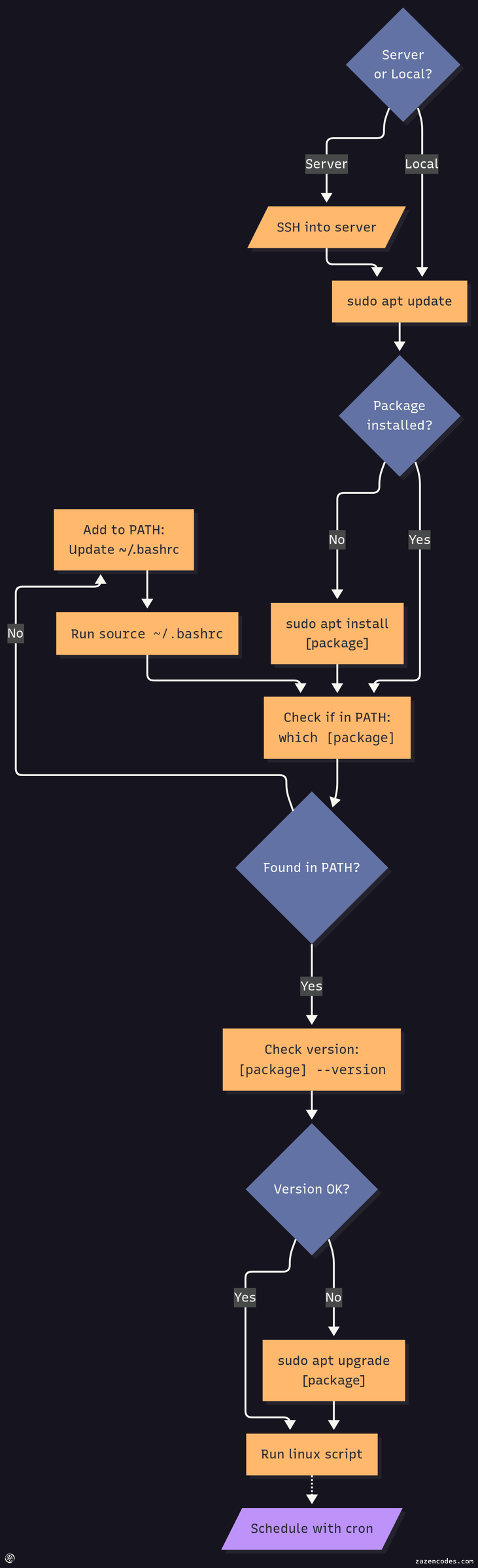
The PATH environment variable tells your shell where to look for executable programs.
Common directories in your PATH:
/usr/local/bin: Recommended for manually installed programs/opt/bin: Alternative location for optional software~/bin: Personal binaries in your home directory (this may need to be added to your PATH)
Example: View your current PATH
echo $PATH
Command-line Tools
grep: Search for patterns in text files.>>> cat logs.txt | grep ERRORawkandsed: Process and manipulate text.>>> awk -F ',' '{print $1,$3}' data.csv >>> sed 's/old/new/g' file.txt > newfile.txttarandgzip: Archive and compress files.>>> tar -czvf archive.tar.gz folder/ >>> tar -xzvf archive.tar.gzssh: Access remote servers.>>> ssh user@server_address
Cron (Task Scheduling)
Cron is a time-based job scheduler in Unix-like operating systems.
Common cron patterns:
# Run daily at midnight
0 0 * * * /path/to/script.sh

# Run every hour
0 * * * * /path/to/script.sh
Conclusion
This section got pretty wild, eh? I love Linux, so I got a bit carried away with this topic… I couldn’t help myself!
If you’re feeling overwhelmed, let me reassure you - you’ll learn all this and more simply by using Linux for your development work.
Key Takeaways
🐧 Linux is the foundation of AI and data workflows.
☁️ Knowing Linux helps with cloud computing, machine learning, and DevOps.
💻 The command line is powerful for automation, troubleshooting, and scaling systems.
📂 Learning commands, permissions, and the filesystem structure is crucial.
Next: Coding
Next, let’s talk about coding.
Footnotes
Having trouble remembering how to use linux tools or other CLIs? Well I’ve found one CLI to rule them all. It’s called
llmand it knows them all, e.g.llm 'linux command to print tail of log file and attach to it. only output the command.'. I made a video about how I use it: The awesome power of an LLM in your terminal. ↩︎
Comments (0)
No comments yet.