Git Collaboration
In the previous lesson, we learned the basics of setting up a Git project.
That lesson has pretty much all we need to work on a project by ourselves. But when we’re sharing repositories with a team of people, we need strategies that allow everyone to make changes without stepping on each other’s toes.
This Lesson Will Cover
- 🌿 What is branching and why it’s useful
- 🔀 How to create, switch, and push branches
- 🔄 Merging changes and handling merge conflicts
- 🤝 Collaborative workflows, including feature branches and pull requests
What is Branching
A branch is like a separate timeline in our project.
By creating a branch, we can:
- Experiment with a new idea or feature without affecting the main project.
- Work independently on changes without interfering with others’ work.
The Basics of Branching
1. Creating a Branch
To create a new branch, use:
git branch feature-name
For example, to create a branch called feature/churn-boosted-model:
git branch feature/churn-boosted-model
2. Switching to a Branch
Move to the new branch with:
git checkout feature/churn-boosted-model
Starting with Git 2.23, we can also use:
git switch feature/churn-boosted-model
Now, any changes we make are isolated to this branch.
3. Pushing a Branch to GitHub
After creating our branch locally, we can push it to GitHub with:
git push -u origin feature/churn-boosted-model
The -u flag sets up tracking, connecting our local branch to the remote branch.
4. Listing Branches
To see all local branches in our repository, run:
git branch
To see both local and remote branches:
git branch -a
The active branch is marked with an asterisk (*).
Working with Branches
1. Making Changes in a Branch
Let’s say we’re in the feature/churn-boosted-model branch. We can edit files, commit changes, and test ideas without impacting the main branch.
git add .
git commit -m "Add gradient boosting model for customer churn prediction"
2. Merging Changes
Once we’re satisfied with our work in the branch, we can merge it back into the main branch.
Switch to the main branch:
git switch main
Then merge the branch:
git merge feature/churn-boosted-model
This integrates the changes from feature/churn-boosted-model into main.
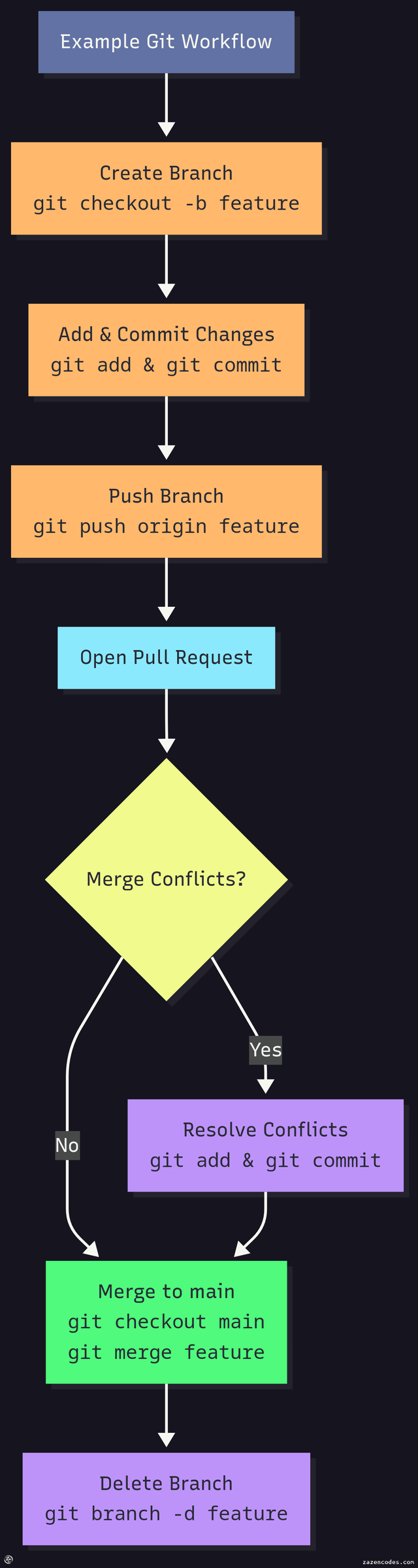
Handling Merge Conflicts
Sometimes, changes in one branch conflict with changes in another. In these cases (i.e., when there’s a merge conflict) Git will pause the merge and ask us to resolve the conflicts manually.
-
Git will mark the conflicting files. Open these files to review the conflict markers (
<<<<<<,======,>>>>>>). -
Edit the file to resolve the conflict.
-
Add the resolved file back to the staging area:
git add filename -
Complete the merge:
git commit
Collaborative Workflows
1. Feature Branch Workflow
In collaborative projects, a common practice is to use a feature branch for each task. For example:
main(ormaster): The production-ready code.feature/cnn-model-training: A branch for training convolutional neural networks for image classification.feature/kafka-data-pipeline: A branch for setting up an Apache Kafka streaming data pipeline.bugfix/nan-prediction-error: A branch for fixing NaN values in model predictions.enhancement/xgboost-accuracy: A branch for improving XGBoost model performance through parameter tuning.
Developers create branches for their tasks and merge them back into main once complete.
2. Pull Requests
We’ll often create a PR (Pull Request) to propose merging our branch into main, particularly when working with a bigger team or contributing to an open-source project. This workflow allows others to review our code before merging.
We’ll take a closer look at how this works in the next lesson.
Conclusion
Even though you might not need these workflows when working alone, practicing Git in your personal projects will prepare you for success when you start collaborating with a team.
Key Takeaways
🌿 Branching allows developers to work on different features independently.
🔀 Use
git branchto create new branches andgit switchorgit checkoutto switch between them.🔗 Merging branches brings changes back into
main.⚠️ Merge conflicts happen when changes in different branches overlap, and they must be resolved manually.
📂 Feature branch workflows keep projects organized and facilitate collaboration.
✅ Pull requests enable code review before merging changes into the main branch.
Next: GitHub
Now, Git alone isn’t enough for effective collaboration. That’s where developer platforms like GitHub come in.
In the next section, we’ll talk about some of the amazing things we can do there.
Comments (0)
No comments yet.